HTTP/SSE Transport Mode
Starting with version 1.0.7, Playwright MCP Server supports HTTP/SSE (Server-Sent Events) transport mode in addition to the standard stdio mode. This enables new deployment scenarios and use cases.
Overview
The HTTP/SSE transport allows the MCP server to run as a standalone HTTP server, enabling:
- Remote server deployments
- Multiple concurrent client connections
- Better integration with certain IDEs (e.g., VS Code)
- Health monitoring and debugging endpoints
- Background service operation
- DRY-compliant implementation for maximum maintainability
Transport Modes Comparison
| Feature | stdio Mode | HTTP/SSE Mode |
|---|---|---|
| Default | ✅ Yes | ❌ No |
| Claude Desktop | ✅ Supported | ⏳ Coming Soon |
| VS Code Copilot | ✅ Supported | ✅ Supported |
| Remote Deployment | ❌ No | ✅ Yes |
| Multiple Clients | ❌ No | ✅ Yes |
| Health Endpoint | ❌ No | ✅ Yes |
| Setup Complexity | Simple | Medium |
Quick Start
Starting the HTTP Server
Recommended: Using npx (Version 1.0.9+)
npx @executeautomation/playwright-mcp-server --port 8931
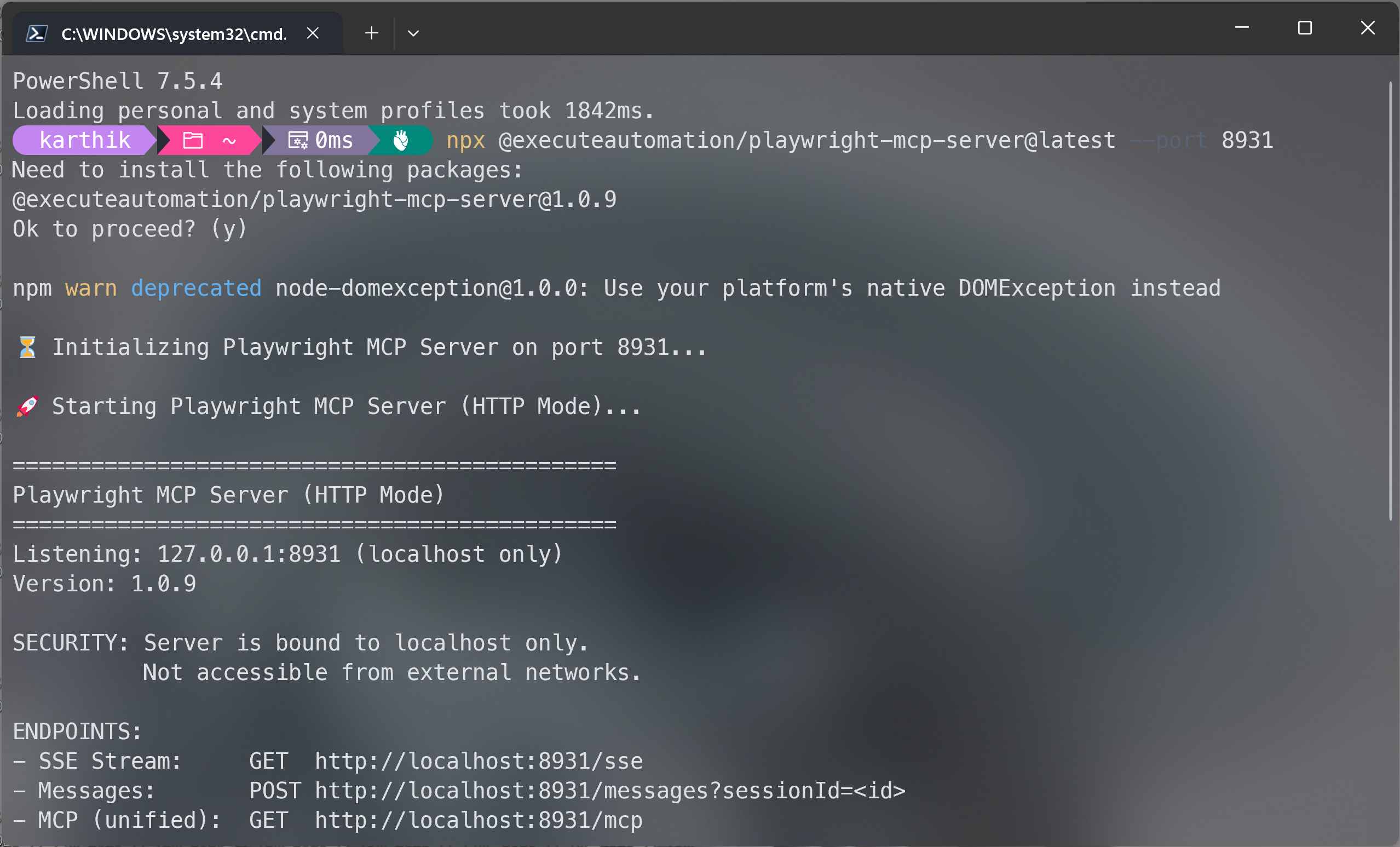
npx support requires version 1.0.9 or later. If you're using an older version, you'll need to use global installation (see below).
Alternative: Global Installation
If you prefer global installation or are using version 1.0.8 or earlier:
# Install globally
npm install -g @executeautomation/playwright-mcp-server

# Run the server
playwright-mcp-server --port 8931
- npx (recommended): Always uses the latest version, no installation needed
- Global install: Faster startup, uses specific installed version
Troubleshooting npx
If npx doesn't show console output (versions < 1.0.9):
# Option 1: Update to latest version
npx @executeautomation/playwright-mcp-server@latest --port 8931

# Option 2: Use global installation instead
npm install -g @executeautomation/playwright-mcp-server
playwright-mcp-server --port 8931
Server Output
When started successfully, you'll see:
⏳ Initializing Playwright MCP Server on port 8931...

🚀 Starting Playwright MCP Server (HTTP Mode)...

==============================================
Playwright MCP Server (HTTP Mode)
==============================================
Listening: 127.0.0.1:8931 (localhost only)
Version: 1.0.9

SECURITY: Server is bound to localhost only.
          Not accessible from external networks.

ENDPOINTS:
- SSE Stream:     GET  http://localhost:8931/sse
- Messages:       POST http://localhost:8931/messages?sessionId=<id>
- MCP (unified):  GET  http://localhost:8931/mcp
- MCP (unified):  POST http://localhost:8931/mcp?sessionId=<id>
- Health Check:   GET  http://localhost:8931/health

CLIENT CONFIGURATION:
{
  "mcpServers": {
    "playwright": {
      "url": "http://localhost:8931/mcp",
      "type": "http"
    }
  }
}
==============================================

Monitoring HTTP server listening on port 55123
Health check: http://localhost:55123/health
Metrics: http://localhost:55123/metrics
If you don't see the console output above:
- Check your version: Run
npx @executeautomation/playwright-mcp-server@latest --port 8931 - Use global install:
npm install -g @executeautomation/playwright-mcp-serverthenplaywright-mcp-server --port 8931 - Verify server is running:
curl http://localhost:8931/health(should return{"status":"ok"})
Client Configuration
For VS Code GitHub Copilot
Step 1: Start the HTTP server
playwright-mcp-server --port 8931
Step 2: Add to VS Code settings (.vscode/settings.json or User Settings):
{
  "github.copilot.chat.mcp.servers": {
    "playwright": {
      "url": "http://localhost:8931/mcp",
      "type": "http"
    }
  }
}
The "type": "http" field is required for HTTP/SSE transport. Without it, the client will not connect properly.
Step 3: Reload VS Code
For Claude Desktop
Claude Desktop currently requires stdio mode. Use the standard configuration instead:
{
  "mcpServers": {
    "playwright": {
      "command": "npx",
      "args": ["-y", "@executeautomation/playwright-mcp-server"]
    }
  }
}
HTTP transport support for Claude Desktop is expected in future updates.
For Custom MCP Clients
{
  "mcpServers": {
    "playwright": {
      "url": "http://localhost:8931/mcp",
      "type": "http"
    }
  }
}
Required Fields:
url- The HTTP endpoint URLtype- Must be "http" for HTTP/SSE transport
Without "type": "http", the client may attempt stdio mode and fail to connect.
Available Endpoints
Health Check
curl http://localhost:8931/health
Response:
{
  "status": "ok",
  "version": "1.0.7",
  "activeSessions": 0
}
SSE Stream (Legacy)
curl -N http://localhost:8931/sse
Establishes an SSE connection and returns the endpoint for sending messages.
MCP Unified Endpoint (Recommended)
curl -N http://localhost:8931/mcp
The unified endpoint that handles both SSE streaming and message sending.
Monitoring Metrics
The monitoring system runs on PORT+1:
curl http://localhost:8932/health
curl http://localhost:8932/metrics
Command-Line Options
playwright-mcp-server [OPTIONS]

OPTIONS:
  --port <number>    Run in HTTP mode on the specified port
  --help, -h         Show help message

EXAMPLES:
  # Run in stdio mode (default)
  playwright-mcp-server

  # Run in HTTP mode on port 8931
  playwright-mcp-server --port 8931

  # Run in HTTP mode on custom port
  playwright-mcp-server --port 3000
Use Cases
1. Remote Server Deployment
Run the server on a remote machine:
# On remote server
ssh user@remote-server
playwright-mcp-server --port 8931

# Configure client to connect remotely
{
  "mcpServers": {
    "playwright": {
      "url": "http://remote-server:8931/mcp"
    }
  }
}
2. Background Service
Run as a persistent background service:
# Using nohup
nohup playwright-mcp-server --port 8931 > server.log 2>&1 &

# Check status
curl http://localhost:8931/health

# View logs
tail -f server.log
3. Docker Deployment
FROM node:20

WORKDIR /app

RUN npm install -g @executeautomation/playwright-mcp-server

EXPOSE 8931

CMD ["playwright-mcp-server", "--port", "8931"]
Run the container:
docker build -t playwright-mcp .
docker run -p 8931:8931 playwright-mcp
4. Multiple Concurrent Clients
HTTP mode supports multiple clients simultaneously:
# Start server
playwright-mcp-server --port 8931

# Client 1 connects
# Client 2 connects
# Client 3 connects

# Check active sessions
curl http://localhost:8931/health
# Returns: {"status":"ok","activeSessions":3}
Session Management
Each client connection creates a unique session:
- Session ID: Automatically generated UUID
- Isolation: Each session has its own browser instance
- Cleanup: Automatic cleanup on connection close
- Monitoring: Track active sessions via health endpoint
Example Session Flow
- Client connects → GET
/mcp - Server responds → Returns session endpoint
- Client sends messages → POST
/mcp?sessionId=<id> - Server processes → Returns results via SSE
- Client disconnects → Session automatically cleaned up
Testing HTTP Mode
Automated Testing
# Clone the repository
git clone https://github.com/executeautomation/mcp-playwright.git
cd mcp-playwright

# Build
npm run build

# Run automated tests
./test-http-mode.sh
The test script validates:
- ✅ Server startup
- ✅ Health endpoint
- ✅ SSE connections
- ✅ Error handling
- ✅ Session management
- ✅ Monitoring endpoints
Manual Testing
# Terminal 1: Start server
playwright-mcp-server --port 8931

# Terminal 2: Test endpoints
curl http://localhost:8931/health
curl -N http://localhost:8931/mcp | head -5
curl http://localhost:8932/metrics
Using MCP Inspector
# Start server
playwright-mcp-server --port 8931

# Test with official MCP inspector
npx @modelcontextprotocol/inspector http://localhost:8931/mcp
Monitoring and Debugging
Health Monitoring
The /health endpoint provides real-time status:
curl http://localhost:8931/health | jq
Monitoring points:
- Server status
- Version information
- Active session count
- Response time
Metrics Collection
The monitoring server uses dynamic port allocation to avoid conflicts. Check the console output for the actual port:
# Server output shows:
# Monitoring HTTP server listening on port 59055
# Health check: http://localhost:59055/health
# Metrics: http://localhost:59055/metrics
Access detailed metrics:
# Use the port from server output
curl http://localhost:59055/metrics | jq
Available metrics:
- Request counts
- Response times
- Error rates
- Memory usage
- System health
Note: The monitoring port is dynamically allocated (using port 0) to prevent conflicts with other services.
Logs
Server logs are written to stdout/stderr in JSON format:
# View logs in real-time
tail -f server.log

# Filter by level
grep '"level":"error"' server.log

# Track specific session
grep '"sessionId":"abc-123"' server.log

# Monitor all incoming requests
grep '"message":"Incoming request"' server.log
Log Levels:
info- Normal operations (requests, connections, transport events)warn- Potential issues (unknown sessions, missing parameters)error- Failures (connection errors, handler exceptions)
Key Log Messages:
// Client connects
{"level":"info","message":"Incoming request","context":{"method":"GET","path":"/mcp"}}
{"level":"info","message":"SSE connection request received","context":{"endpoint":"/mcp"}}
{"level":"info","message":"Transport registered","context":{"sessionId":"...","activeTransports":1}}

// Client sends message
{"level":"info","message":"Incoming request","context":{"method":"POST","path":"/mcp"}}
{"level":"info","message":"POST message received","context":{"sessionId":"...","availableTransports":[...]}}

// Client disconnects
{"level":"info","message":"SSE connection closed","context":{"sessionId":"...","endpoint":"/mcp"}}
{"level":"info","message":"Transport unregistered","context":{"activeTransports":0}}
Code Quality
The HTTP server implementation follows software engineering best practices:
DRY Principle (Don't Repeat Yourself)
All endpoint logic is centralized in reusable helper functions:
Before (with duplication):
// /sse endpoint - 26 lines of code
app.get('/sse', async (req, res) => {
  // SSE connection logic...
});

// /mcp endpoint - 26 lines of identical code
app.get('/mcp', async (req, res) => {
  // Same SSE connection logic...
});
After (DRY compliant):
// Reusable helper - 29 lines total
const handleSseConnection = async (endpoint, messageEndpoint, req, res) => {
  // SSE connection logic (single source of truth)
};

// Simple endpoint definitions - 2 lines total
app.get('/sse', (req, res) => handleSseConnection('/sse', '/messages', req, res));
app.get('/mcp', (req, res) => handleSseConnection('/mcp', '/mcp', req, res));
Benefits
- 40% code reduction in endpoint handlers
- Zero duplication - single source of truth
- Consistent behavior - all endpoints work the same way
- Easy maintenance - update once, applies everywhere
- Lower bug risk - no chance of inconsistent implementations
Maintainability
The implementation prioritizes long-term maintainability:
- Clear separation of concerns
- Reusable, testable functions
- Comprehensive error handling
- Context-aware logging
- Type-safe TypeScript implementation
Architecture
Components
┌─────────────────────┐
│   HTTP Server       │
│   (Express)         │
└──────────┬──────────┘
           │
    ┌──────┴──────┐
    │             │
┌───▼───┐    ┌───▼────┐
│  SSE  │    │ Health │
│ Trans │    │  Check │
│ port  │    │        │
└───┬───┘    └────────┘
    │
┌───▼────────────────┐
│  MCP Server Core   │
│  - Request Handler │
│  - Tool Handler    │
│  - Browser Manager │
└────────────────────┘
Transport Layer
The implementation uses MCP SDK's native SSEServerTransport with DRY-compliant helper functions:
import { SSEServerTransport } from "@modelcontextprotocol/sdk/server/sse.js";

// Reusable helper function handles all SSE connections
const handleSseConnection = async (endpoint, messageEndpoint, req, res) => {
  const transport = new SSEServerTransport(messageEndpoint, res);
  await server.connect(transport);
  // ... session management, logging, error handling
};

// All endpoints use the same logic
app.get('/sse', (req, res) => handleSseConnection('/sse', '/messages', req, res));
app.get('/mcp', (req, res) => handleSseConnection('/mcp', '/mcp', req, res));
Benefits of this approach:
- Single source of truth for endpoint logic
- Consistent behavior across all endpoints
- Easy to maintain and update
- Reduced code duplication (40% less code)
- Lower bug risk
Session Lifecycle
Client Request
     ↓
GET /mcp
     ↓
Create Session
     ↓
Return Session ID
     ↓
Client POSTs Messages
     ↓
Server Processes via SSE
     ↓
Connection Closes
     ↓
Cleanup Session
Security Considerations
The server binds to 127.0.0.1 (localhost only) by default. This is a critical security feature that prevents external access.
Network Binding
SECURITY: The server binds to 127.0.0.1 (localhost only):
- ✅ Accessible only from the local machine
- ✅ Not exposed to external networks
- ✅ Secure by default
- ✅ Suitable for local development
- ✅ No accidental external exposure
- ✅ Protects against unauthorized access
Why This Matters:
- Prevents external machines from accessing your MCP server
- Protects browser automation capabilities from network exposure
- Ensures no accidental exposure in shared network environments
- Follows security best practices for local development tools
Remote Access (Secure Method)
DO NOT modify the code to bind to 0.0.0.0. Instead, use SSH tunneling:
# On the remote server (server still binds to localhost)
playwright-mcp-server --port 8931

# On your local machine (create secure tunnel)
ssh -L 8931:localhost:8931 user@remote-server

# Now access securely via localhost:8931
Benefits of SSH Tunneling:
- ✅ Encrypted connection
- ✅ Authentication required
- ✅ Server stays bound to localhost
- ✅ Industry standard practice
Production Deployment
For production environments, use a reverse proxy:
# nginx example
server {
    listen 80;
    server_name your-domain.com;

    location /mcp {
        proxy_pass http://127.0.0.1:8931;
        # Add authentication
        auth_basic "MCP Server";
        auth_basic_user_file /etc/nginx/.htpasswd;
    }
}
Benefits:
- ✅ Server stays on localhost
- ✅ Add authentication layer
- ✅ Enable SSL/TLS
- ✅ Implement rate limiting
- ✅ Better logging and monitoring
Example: SSH Tunnel
# On local machine
ssh -L 8931:localhost:8931 user@remote-server

# Server now accessible at localhost:8931
Troubleshooting
Debugging Tools
Version 1.0.7 includes comprehensive logging to help diagnose issues:
Request Logging: Every HTTP request is logged with:
- Method (GET, POST)
- Path and URL
- Query parameters
- Headers (Accept, Content-Type)
Session Tracking: Monitor SSE sessions with:
- Transport registration logs
- Active transport counts
- Session ID tracking
- Connection close events
Example Debug Output:
{"level":"info","message":"Incoming request","context":{"method":"GET","path":"/mcp"}}
{"level":"info","message":"Transport registered","context":{"sessionId":"abc-123","activeTransports":1}}
{"level":"info","message":"POST message received","context":{"sessionId":"abc-123","endpoint":"/mcp"}}
Common Issues
Issue: npx Shows No Console Output
Symptom: Running npx @executeautomation/playwright-mcp-server --port 8931 shows no output or seems to hang.
Cause: Versions prior to 1.0.9 had an output buffering issue with npx.
Solutions:
-
Update to latest version (recommended):
npx @executeautomation/playwright-mcp-server@latest --port 8931 -
Use global installation:
npm install -g @executeautomation/playwright-mcp-server
playwright-mcp-server --port 8931 -
Verify server is actually running:
# Even without visible output, the server might be running
curl http://localhost:8931/health
If this returns
{"status":"ok","version":"1.0.x","activeSessions":0}, the server is running successfully despite no console output.
Why this happens:
- Node.js buffers
console.log()output when stdout is not a TTY - Fixed in version 1.0.9 by using
process.stdout.write() - Global installation doesn't have this issue
Issue: "No transport found for sessionId"
Symptom: Client receives 400 error with message about missing transport.
Causes:
- GET request to establish SSE connection didn't complete
- Client using stale/cached sessionId
- Server restarted but client kept old sessionId
Solution:
# Check logs for "Transport registered" - should appear before POST messages
# Look for this sequence:
# 1. "Incoming request" GET /mcp
# 2. "SSE connection request received"
# 3. "Transport registered" with sessionId
# 4. "POST message received" with same sessionId

# If sequence is wrong, client needs to reconnect
Port Already in Use
# Check what's using the port
lsof -i :8931

# Use a different port
playwright-mcp-server --port 9000
Connection Refused
# Verify server is running
ps aux | grep playwright-mcp-server

# Check server logs
tail -f server.log

# Test with curl
curl -v http://localhost:8931/health
SSE Connection Issues
Check if SSE stream is established:
# Should show continuous stream, not immediate close
curl -N http://localhost:8931/mcp

# Look for:
# event: endpoint
# data: /mcp?sessionId=<uuid>
Verify session is registered:
# In server logs, look for:
grep "Transport registered" server.log

# Should show sessionId matching what client uses
Browser Issues
# Install Playwright browsers
npx playwright install chromium

# For headless mode on servers without display
export DISPLAY=:99
Session Not Found
This error occurs when:
- Session has expired
- Server was restarted
- Client used invalid session ID
Solution: Reconnect to establish a new session.
Performance Considerations
Concurrent Connections
The server handles multiple concurrent clients efficiently:
- Each session is isolated
- Browser instances are managed per session
- Automatic resource cleanup
Resource Limits
Monitor resource usage:
# Check memory usage
curl http://localhost:8932/metrics | jq '.memory'

# Check active sessions
curl http://localhost:8931/health | jq '.activeSessions'
Migration Guide
From stdio to HTTP Mode
Before (stdio):
{
  "mcpServers": {
    "playwright": {
      "command": "npx",
      "args": ["-y", "@executeautomation/playwright-mcp-server"]
    }
  }
}
After (HTTP):
- Start the server:
playwright-mcp-server --port 8931
- Update configuration:
{
  "mcpServers": {
    "playwright": {
      "url": "http://localhost:8931/mcp"
    }
  }
}
Backward Compatibility
- stdio mode remains the default
- All existing tools work in both modes
- No breaking changes to API
- Configurations are independent
FAQ
Q: Should I use npx or global installation?
Use npx (recommended):
- ✅ Always uses latest version
- ✅ No installation needed
- ✅ Easy to update
- ⚠️ Requires version 1.0.9+ for console output
Use global installation:
- ✅ Faster startup (no download)
- ✅ Works with all versions
- ✅ More predictable (pinned version)
- ⚠️ Needs manual updates
Quick test which works for you:
# Try npx first
npx @executeautomation/playwright-mcp-server@latest --port 8931

# If no output, use global install
npm install -g @executeautomation/playwright-mcp-server
playwright-mcp-server --port 8931
Q: Should I use HTTP or stdio mode?
Use stdio mode if:
- You're using Claude Desktop
- You want simpler setup
- You're running locally only
Use HTTP mode if:
- You need remote access
- You want multiple clients
- You need health monitoring
- You're using VS Code Copilot
Q: Can I run both modes simultaneously?
Yes! Run them on different ports or different machines.
Q: How do I secure HTTP mode?
Consider:
- SSH tunneling for remote access
- Reverse proxy with authentication
- Network firewall rules
- HTTPS/TLS certificates
Q: What's the performance difference?
Both modes have similar performance. HTTP mode has slightly higher overhead due to HTTP protocol, but it's negligible for typical use cases.
Additional Resources
Support
If you encounter issues:
- Check the troubleshooting section
- Run the automated test:
./test-http-mode.sh - Review server logs
- Open an issue on GitHub
Version Added: 1.0.7
Protocol Version: MCP 2024-11-05+
Status: Stable